> For the complete documentation index, see [llms.txt](https://docs.wiclax.com/llms.txt). Markdown versions of documentation pages are available by appending `.md` to page URLs; this page is available as [Markdown](https://docs.wiclax.com/en/use-wiclax/acquisition-of-timing-data/remote-acquisitions.md).
# Remote acquisitions
Remote acquisition is when a detection device is not directly connected to Wiclax - i.e. it's not reachable from the local network.\
Instead it's synchronizing its data by communicating with a service present on the Web. Wiclax can then connect to this service to integrate data in your event.
## Vendor services
Some equipment manufacturers are providing their own service. When this is the case and Wiclax knows how to communicate with this service, you'll retrieve it listed in the `Online passings` kind of acquisitions:
The specific settings for such an acquisition involve:
* your customer identification - either a user/password combination or sometimes an API key
* the selection of the split point/location as it is defined on your user space on the vendor platform
When this is done, you can request some data rewind to query existing passings, or activate the acquisition so that it will automatically download data as soon as it becomes available on the web.
Note that depending on which service is connected the reception can be almost real time, or more basically based on a regular interrogation.
## Wiclax cloud service
Some equipments can be set to synchronize their data with the Wiclax passing cloud service. Readers from UrTime, RaceResult or Feibot are among them.
The advantage of the service is that it can gather multiple kinds of systems under the same interface. Also it allows real time transmission to Wiclax.
The address for the service administration page is [wiclax.com/mysplits](https://wiclax.com/mysplits). If you declare here one of your RFID readers, selecting the manufacturer you will see if it's compatible with the service or not. The case happening you can display some instructions on how to setup devices.
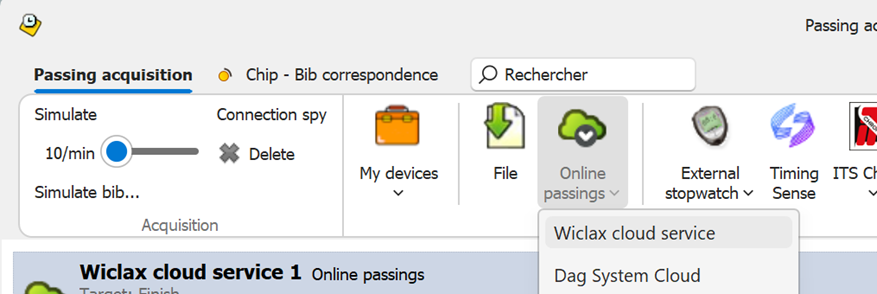
When a device is successfully associated with the service, you can create an `Online passings` kind of acquisition, selecting `Wiclax cloud service`:
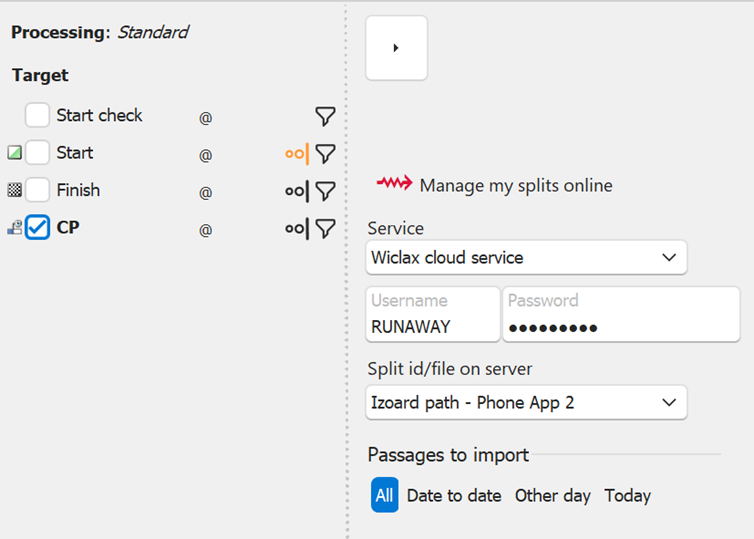
On the acquisition settings, enter your Wiclax account credentials and then drop down the *Split id* list to bind it to the device of your choice.
{% hint style="info" %}
It's important to note that you're binding the acquisition to a device. This device can be temporarily associated with a location name for convenience, but for the sake of simplicity there's no session nor file management. This greatly reduces the risks of mistake.\
That means the data you're looking for will always be based on a certain date range, as you know when and where the device was operating.
{% endhint %}
When this is done, you can request some data rewind to query existing passings, or activate the acquisition (switch button) so that it will automatically download data as soon as it becomes available on the web.
The administration web page can be used as a device monitoring, as it shows ongoing detection activity, counters, access to data...
## The Timing Point phone App
If you're in a scenario where it's not worth deploying a connected RFID reader on a remote location, you can have somebody doing a manual control. To do that we're offering our Wiclax Timing Point app for smartphones.
{% hint style="info" %}
The app will fully operate only if you purchased the corresponding option for your Wiclax license. This option can be purchased at any time.
{% endhint %}
{% hint style="warning" %}
Right now the app is only available for Android phones, IOS version coming soon.
{% endhint %}
### Getting started
#### Declare a virtual device
First you will need to access your devices management page on your Wiclax account: [wiclax.com/mysplits](https://wiclax.com/mysplits)\
Here you can declare a new virtual device, using the main menu *Bind a phone app*.
{% hint style="info" %}
A virtual device can be seen as a data collector, so it doesn’t matter if you represent it for yourself as a physical device (a phone), a geographical location or even a person in charge of the timing.
The same virtual device can be used to manage as many timing as you wish, provided that they don’t happen simultaneously. The basic principle is that you always know when and where a phone was in use.
{% endhint %}
The information to identify the virtual device is:
* Its ID, required: choose a unique value that will identify the device
* A friendly name, optional
* A current location name, also optional
Both the friendly name and the location name can be changed at any time, without impact on the data.\
Changing the device ID when some passing data are bound to it will cause these data to be inaccessible, though it's not deleted.
Click Save and your virtual device is ready. The web page can be used at any time to monitor live activity or to have an overview of passing data integrated by the server.
#### Install and setup the App
So far, the app is available as an apk file. It can be downloaded directly from this [link](https://wiclax.com/assets/com.genialp.wiclaxtimingpoint.apk).
Once launched you simply need to associate it with your virtual device on the cloud. Click on the settings icon, then enter the Wiclax account username and the virtual device ID. If successful, its friendly name and the current location will get displayed on the main screen.
And that’s it, you’re ready to enter some passings. When an Internet connection is available they get automatically forwarded to the server. A green flag appears on rows to signal they have been transferred.
#### Get data in Wiclax
On Wiclax side, you will simply create a passing acquisition, of *Online passings* type, selecting the Wiclax cloud service:
Settings for this acquisition:
* The target split point associated with the timing location
* The credentials (username and password) corresponding to your Wiclax account
* The link to the virtual device on the server – to pickup in the dropdown list below
When that’s done, you can:
* Activate the acquisition, using the switch button from the list. This will make it ready to catch the live streaming of passings.
* Use the rewind button at any time if you want to retrieve passings in a delayed way – or simply because some live data was missed.
#### Good to know
You can have multiple phones working simultaneously for the same location
Local data on the phone can be cleared, but it’s usually unnecessary as it’s been already transferred to the cloud. A maximum duration of conservation applies anyway.
---
# Agent Instructions
This documentation is published with GitBook. GitBook is the documentation platform designed so that both humans and AI agents can read, navigate, and reason over technical content effectively. Learn more at gitbook.com.
## Querying This Documentation
If you need additional information that is not directly available in this page, you can query the documentation dynamically by asking a question.
Perform an HTTP GET request on the current page URL with the `ask` query parameter, and the optional `goal` query parameter:
```
GET https://docs.wiclax.com/en/use-wiclax/acquisition-of-timing-data/remote-acquisitions.md?ask=&goal=
```
`ask` is the immediate question: it should be specific, self-contained, and written in natural language.
`goal` is optional and describes the broader end goal you are ultimately trying to accomplish on behalf of the user. GitBook uses it to tailor the answer towards what is most useful for that goal.
The response will contain a direct answer to the question and relevant excerpts and sources from the documentation.
Use this mechanism when the answer is not explicitly present in the current page, you need clarification or additional context, or you want to retrieve related documentation sections.


 Wiclax cloud service
Some equipments can be set to synchronize their data with the Wiclax passing cloud service. Readers from UrTime, RaceResult or Feibot are among them.
The advantage of the service is that it can gather multiple kinds of systems under the same interface. Also it allows real time transmission to Wiclax.
The address for the service administration page is [wiclax.com/mysplits](https://wiclax.com/mysplits). If you declare here one of your RFID readers, selecting the manufacturer you will see if it's compatible with the service or not. The case happening you can display some instructions on how to setup devices.
When a device is successfully associated with the service, you can create an `Online passings` kind of acquisition, selecting `Wiclax cloud service`:
Wiclax cloud service
Some equipments can be set to synchronize their data with the Wiclax passing cloud service. Readers from UrTime, RaceResult or Feibot are among them.
The advantage of the service is that it can gather multiple kinds of systems under the same interface. Also it allows real time transmission to Wiclax.
The address for the service administration page is [wiclax.com/mysplits](https://wiclax.com/mysplits). If you declare here one of your RFID readers, selecting the manufacturer you will see if it's compatible with the service or not. The case happening you can display some instructions on how to setup devices.
When a device is successfully associated with the service, you can create an `Online passings` kind of acquisition, selecting `Wiclax cloud service`:

 The Timing Point phone App
If you're in a scenario where it's not worth deploying a connected RFID reader on a remote location, you can have somebody doing a manual control. To do that we're offering our Wiclax Timing Point app for smartphones.
{% hint style="info" %}
The app will fully operate only if you purchased the corresponding option for your Wiclax license. This option can be purchased at any time.
{% endhint %}
{% hint style="warning" %}
Right now the app is only available for Android phones, IOS version coming soon.
{% endhint %}
### Getting started
#### Declare a virtual device
First you will need to access your devices management page on your Wiclax account: [wiclax.com/mysplits](https://wiclax.com/mysplits)\
Here you can declare a new virtual device, using the main menu *Bind a phone app*.
The Timing Point phone App
If you're in a scenario where it's not worth deploying a connected RFID reader on a remote location, you can have somebody doing a manual control. To do that we're offering our Wiclax Timing Point app for smartphones.
{% hint style="info" %}
The app will fully operate only if you purchased the corresponding option for your Wiclax license. This option can be purchased at any time.
{% endhint %}
{% hint style="warning" %}
Right now the app is only available for Android phones, IOS version coming soon.
{% endhint %}
### Getting started
#### Declare a virtual device
First you will need to access your devices management page on your Wiclax account: [wiclax.com/mysplits](https://wiclax.com/mysplits)\
Here you can declare a new virtual device, using the main menu *Bind a phone app*.