> For the complete documentation index, see [llms.txt](https://docs.wiclax.com/llms.txt). Markdown versions of documentation pages are available by appending `.md` to page URLs; this page is available as [Markdown](https://docs.wiclax.com/it/utilizza-wiclax/linterfaccia-generale/lavorare-con-le-griglie.md).
# Lavorare con le griglie
È importante familiarizzare con il lavoro con le griglie di dati. Ecco cosa devi sapere a riguardo.
## Selecting columns
Cliccando sul pannello sopra le griglie principali, o in alternativa su questo pulsante , viene visualizzato il menu di selezione delle colonne. I dati sono organizzati in blocchi logici:
La voce `Nascondi` nel menu contestuale di un'intestazione di colonna consente di renderla invisibile.
L'ordine e la larghezza delle colonne possono essere modificati utilizzando il mouse.
## Filtri
Una griglia può essere filtrata da una colonna. Cliccando sul pulsante filtro nella sua intestazione, puoi selezionare diversi tipi di condizioni o persino creare una combinazione logica di diverse condizioni:
| | |
| --------------------------------------------------------------------------------------------------------------------------------------------------------------------------------------------------------------------------------------------------------- | --------------------------------------------------------------------------------------------------------------------------------------------------------------------------------------------------------------------------------------------------------- |
Quando un filtro è attivo viene visualizzato sotto la griglia, da dove puoi facilmente disattivarlo e riattivarlo, oppure modificarlo per modificarlo:
In quest'area puoi trovare anche l'elenco degli ultimi filtri utilizzati per riassegnarli più rapidamente.
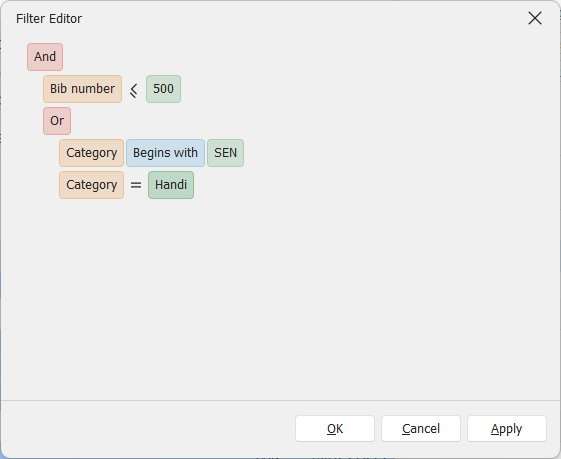
L'editor di filtri consente la costruzione di condizioni più avanzate. Lo troviamo in diversi posti in Wiclax, ogni volta che una condizione di selezione dei partecipanti può essere personalizzata.
Le condizioni nell'editor possono essere raggruppate/organizzate utilizzando gli operatori e o o.
### Riga di filtro
Più veloce per alcune operazioni, è comunque possibile visualizzare la riga di filtro (menu contestuale) e poi inserire i valori da cercare, proprio sotto l'intestazione. L'operatore di ricerca può essere selezionato secondo la vostra comodità.
### Filtri predefiniti
Wiclax also offers some useful filters for the grids of participants and results, which in this case complement the editable filters. They can get selected from this button located at the top right:
## Sorting
Click on a column header to sort the grid by that data, in ascending order; click again to sort it in reverse order.
By holding down the Shift key, you keep the sorting of one column and complete it with that of another (secondary key).
`Control + click` on a header removes the column sorting.
Right click on a header also gives access to these features:
{% hint style="info" %}
The natural sorting of the participant grid is done on the bib number, that of a result grid reflects the order of the ranking. This means that you do not have to worry about sorting the grid on the bib column in the first case or the place column in the second, you just have to make sure that no column is sorted.
{% endhint %}
## Raggruppamento
Grouping data is done by dragging a column header to the grouping panel at the top of the grid.
Multiple levels of grouping can be achieved by dragging the columns successively:
Right click on a group row to select all its child rows:
{% hint style="info" %}
In some cases, you can drag lines of participants from one group to another to assign them the value corresponding to the destination group. For example, if the grid is grouped by heat number, or by starting wave.
{% endhint %}
## Multiple edit
Multiple edit provides the ability to modify the same data for all the selected grid rows, in a single operation. After selection is ready, right click in one of the cells:
## Clear a column
For columns that allow it, context menu on the header:
The operation applies to all visible rows of the grid.
## Character case, replacements
Contextual menu on the header of a column, these 2 entries allow:
* to convert all data in the column to uppercase
* to replace one text fragment with another
## Ricerca
To search for specific data rather than participants, the magnifying glass at the top right of the grids allows you to quickly view the rows containing a subtext, in any column, and navigate among them.
Viene visualizzato il numero di occorrenze e la barra di scorrimento della griglia indica la loro posizione.
## Ricerca incrementale
A cell has the focus but is not in edit mode: by typing one or more characters the selection automatically moves to the next row where data begins with this text, among the active column.
Then using the `Control+up arrow` and `Control+down arrow` combinations, you can go to the previous or next occurrence.
## Copy-Paste
## Conditional formatting
---
# Agent Instructions
This documentation is published with GitBook. GitBook is the documentation platform designed so that both humans and AI agents can read, navigate, and reason over technical content effectively. Learn more at gitbook.com.
## Querying This Documentation
If you need additional information that is not directly available in this page, you can query the documentation dynamically by asking a question.
Perform an HTTP GET request on the current page URL with the `ask` query parameter, and the optional `goal` query parameter:
```
GET https://docs.wiclax.com/it/utilizza-wiclax/linterfaccia-generale/lavorare-con-le-griglie.md?ask=&goal=
```
`ask` is the immediate question: it should be specific, self-contained, and written in natural language.
`goal` is optional and describes the broader end goal you are ultimately trying to accomplish on behalf of the user. GitBook uses it to tailor the answer towards what is most useful for that goal.
The response will contain a direct answer to the question and relevant excerpts and sources from the documentation.
Use this mechanism when the answer is not explicitly present in the current page, you need clarification or additional context, or you want to retrieve related documentation sections.

 , viene visualizzato il menu di selezione delle colonne. I dati sono organizzati in blocchi logici:
 |
|  |
| --------------------------------------------------------------------------------------------------------------------------------------------------------------------------------------------------------------------------------------------------------- | --------------------------------------------------------------------------------------------------------------------------------------------------------------------------------------------------------------------------------------------------------- |
Quando un filtro è attivo viene visualizzato sotto la griglia, da dove puoi facilmente disattivarlo e riattivarlo, oppure modificarlo per modificarlo:
|
| --------------------------------------------------------------------------------------------------------------------------------------------------------------------------------------------------------------------------------------------------------- | --------------------------------------------------------------------------------------------------------------------------------------------------------------------------------------------------------------------------------------------------------- |
Quando un filtro è attivo viene visualizzato sotto la griglia, da dove puoi facilmente disattivarlo e riattivarlo, oppure modificarlo per modificarlo: