> For the complete documentation index, see [llms.txt](https://docs.wiclax.com/llms.txt). Markdown versions of documentation pages are available by appending `.md` to page URLs; this page is available as [Markdown](https://docs.wiclax.com/en/use-wiclax/live-results-broadcast/live-screens.md).
# Live screens
Enjoy the full power of Wiclax to display your results in real time, with no style compromise.
The G-Live app enables designing any kind of **custom screens** which will display race data in real time, following your requirements. They will be useful in a range of situations like those ones:
* spectators have to be in touch with the race as it's ongoing, watching at a giant screen or at their smartphones
* you'd like to emphasize some races or some split points from your event so the race speaker can give the best of it without hassle
Thanks to their design based on **HTML** and **CSS** standards, they offer infinite customization possibilities. We're making our best to make a maximum of them straightly accessible, with no specific technical knowledge. That said, anybody having a background in Web technologies or simply curious to experiment will find a perfect playground in adding a custom touch to the screens.
The main menu `G-Live / Screens` gives an access to the screen templates defined on your PC, and to their design.
{% hint style="info" %}
Screen templates can be shared using the import/export features which handle some files with a *.screenconfig* extension. They can also be saved and re-imported on another PC in association with your user account in the cloud.

For an easier startup or to benefit from some nice inspirations, don't miss the examples you can load from the same menu.
{% endhint %}
## **Design**
The design tool makes it easy to build a screen entirely based on your needs.
The general properties of a screen are its name, its background color and its indicative dimensions in pixels for the case you'd be working on a fixed resolution scoreboard for example.
The screen content is then built up with some so called widgets which are the basic logical and graphical bricks.
In design mode you're working directly on a preview of the screen where you can select widgets. It's as far as possible filled with realistic data so you can see the effects of your changes immediately. Widgets can be moved and resized directly with the mouse.
### **Widgets**
Widgets are some logical and graphical components. You can add/delete/duplicate/edit them from the list on the right side of the preview and the property pane that goes along. Don't hesitate to give each of them a handy name to make things easier.
The widget kinds you can pick up are the following:
#### **Clock**
Dedicated to the display of a race timer or simply the hour of the day. Can be used as a countdown for an event with a known fixed duration - in which case it represents the remaining race time.
#### **Label**
Aimed at displaying a text content. This text can include some variables, which can be inserted with the button below. For instance a number of finishers, the name of the active race, ...
#### **Picture**
To embed some graphics, like for example a race logo.
#### **Result list**
A result list displays a data table. The kind of list you're selecting for it will determine its content and behavior:
* `Recent passings`: the table fills up itself dynamically with the athletes data right after they cross a timed line (either finish or an intermediate split)
* `Ranking`: the table displays the leaders of an individual ranking, either the final one or for a specific split point or segment.
* `General classification`: the table displays the leaders of the event [general classification](/en/getting-started/glossary.md#general-classification) (stage race)
* `Team ranking`: the table displays the first teams of the main team ranking, either after finish or for a specific intermediate split point or segment
* `Participant list`: usable when the current event/heat holds a limited number of participants - the table displays a list of them
* `Competitors at start`, `Competitors in race`: specific to the time trial mode, the table lists competitors according to their individual start time (which is eventually preset). Those awaited as the next starts in the first case, and those awaited on the finish line in the second one. Their race time and their virtual rank gets actualized in real time.
* `Time Trial line`: combines in a single component a dynamic view for a timed line in a Time trial race. Data show ongoing competitor and leader performance, time diffs to leader. Can be combined with a spotter line placed ahead.
A number of settings are available to customize a list, main ones being:
`Row number`: the maximum number of rows the table has to display
`Title`: the list title/caption - optional - which gets positioned above it. It can include some variables. Some CSS style rules can be specified for it if they are appended after a semicolon separator. For example: `Male ranking;font-size:120%;font-weight:bold`
`Columns`: the list columns which can be set as you wish. You can add/delete some, resize or reorder them. The data property determines what a column will show at runtime.
The same way than for title, a column caption if we specify it can be completed by some style rules.
Some X, Y coordinates can be optionally entered to achieve for example a multi-row display (i.e. several lines of data for a single list row).
`Men/Women filter`: in addition to the general filters on race and splits, you can request the list to address only men or women.
`Animations`: an auto scrolling mode can be activated for the list. By playing with its settings - delay between 2 steps, sliding direction and distance in pixels, rendering speed - you can achieve some pretty nice animations.
Layout: you can have data organized into several blocks/columns, laid out vertically or horizontally. And in the case of a recent passing list you can also chose whether the last passed athletes will show up on top or on bottom of the list.
#### **Generic**
For more specific needs, the generic widget make it possible to embed a custom HTML snippet.
## **Graphics and styles**
Each widget or column of a list can be simply customized by editing properties like its text font, text size, background color, ...
Result list widgets can be quickly styled by applying one of the nice predefined styles:

On top of that, any other customization becomes possible by adding some CSS styling rules.
### **CSS**
CSS language (for Cascading Style Sheet) is a well known standard, largely documented on the web. On a screen design you can add some CSS code at different places, mainly those ones:
* at the overall level: here rules can potentially apply to all widgets. For instance to set a border on all clock items in a single definition
* at the level of a widget: rules you enter here will apply only to it
* at the level of a list widget column
The CSS rules you add can rely on *classes* that characterize elements of the screen. You'll discover them the easiest way by using the developer console of your browser. For example to focus on a list row representing a female athlete, to add a blink animation for somebody qualified or who just broke the lap record time... Here we give a few suggestions (simplified) to give a flavor of what's possible:
* `.row.female {color: red} /* red font for women in a list */`
* `.row>div:first-child {background: yellow} /* first column of a list in yellow */`
* `.flag {border-radius: 50%} /* rounded flags */`
* `body[race='10K'] #w536453 {font-size: 200% !important} /* style d'un widget adapté lorsque la course active est le 10Km */`
Applicable **units** for element sizing and positioning are not limited to pixels. By using for example `vw` and `vh` units which are percentages of the viewport (the visible part of the page), you will be able to create some responsive contents, i.e. that adapt themselves to fit in the context (TV resolution, smartphone, ...).
Character fonts proposed by default are the Google fonts, in order to simplify the deployment process. More specifically when your screens have to be made accessible from the web.
The screen rendering involves at some point the [Less](https://lesscss.org/) library, so you can take advantage of it for example to declare some reusable style variables.
The *!important* directive is sometimes necessary to enforce the activation of a rule against another one with a higher priority in the cascade.
## **Display, projection**
### **Standalone screen**
The designer displays the address you can type in any browser connected to the local network to load the screen. It's basically the same address than the G-Live, enriched with the screen keyword and the current screen ID. You can copy paste it or ask for its opening in the PC default browser.
\| | \ |
\| ------------------------------------------------------------------- | ---------------------------------------------------------------------------------------------------------------------------------------------------------------------- |
{% hint style="info" %}
The Live session must be started for a screen to be reached by a browser. By clicking on `Open the Live page` in the G-Live menu, it will start automatically if it wasn't yet and the page will open up in your default browser.
{% endhint %}
{% hint style="info" %}
The refresh button aside the address on the design screen allows to update all screen instances alive, local or remote. This is equivalent to reload pages in the browser, but triggered from Wiclax.
{% endhint %}
### **Integrated to G-Live**
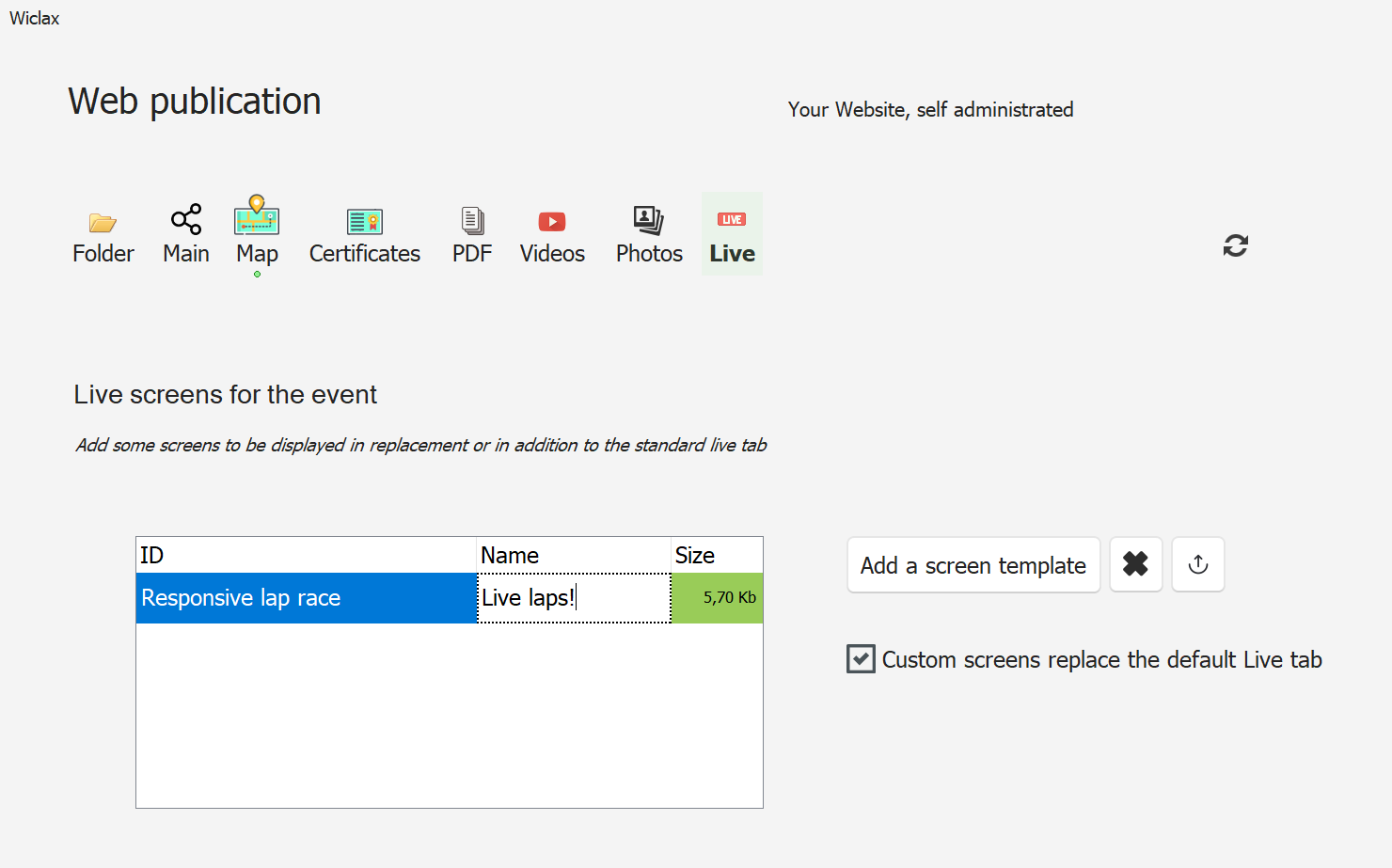
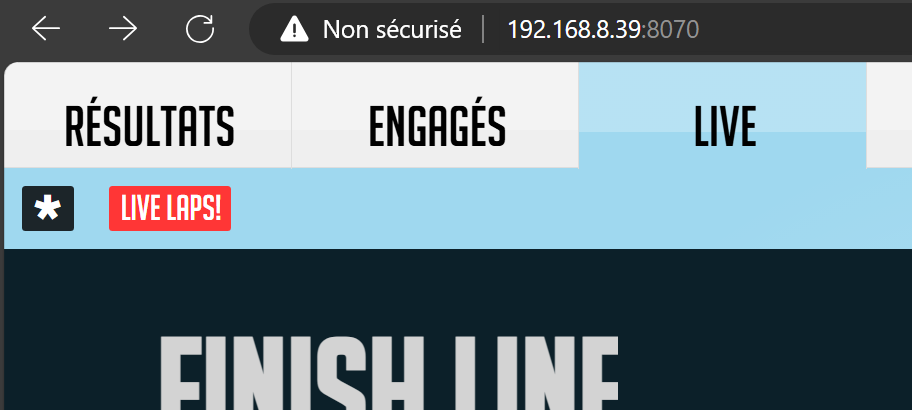
It's also possible to bind a screen to a Wiclax event, in order to make it accessible through the standard G-Live app. Big pro in this case is that the access is a unique address, simply the one for G-Live. The binding is made in the Event publication screen in Wiclax. There several screens can be added, and you can chose whether the standard live display will still be proposed to end users.
You can also get a standalone Live tab with an address of this kind: `http://192.168.8.39/live`
### **On the Web**
If the screen is embedded with the event file, it can be loaded in a standalone fashion by appending an argument `live=1` to the G-Live URL.
In the opposite case, the address has to be built following the template provided by the designer, adapting it to your website and to its architecture. Important: the configuration file of the screen (*.screenconfig* extension) has to be prior uploaded into the G-Live public folder, on the server.
{% hint style="info" %}
Live sessions on the web will be available only if the Web Services option is active on your current user license.
{% endhint %}
### **Projection**
In most cases an independent workstation will be used to transmit the screen towards a Led display.
This step, independent from Wiclax, consists in forwarding the web browser graphics to the display board, using the software and hardware provided by its manufacturer.
Then you've got 2 means to work on a projected screen:
* Using the control screen which gets displayed when a browser loads the screen page. The window displays a replica of the screen as well as a list of its widgets on which you can play: make them visible or hidden, modify the races and splits they're bound to.
* Using the embedded controller from the screen page itself. In this case you can act directly from the browser without requiring any access to Wiclax. Convenient thus if you're managing the projection from another station. The controller gets displayed by simply clicking somewhere on the page.
## **Races and splits**
Each widget of the screen can be independently bound to a race and/or a split point. For example you may want to display the ranking for 10K race at the 2.5km intermediate split.
The race and split assignment can be done from multiple places:
* in design mode, for a preset of requested data
* from the screen's control window, for dynamic changes according to the event ongoing
### **Race-widget association rules**
The main rule is that one: the race identified for a widget is in priority the one it's bound to. Dans le cas où il n'y en a pas à ce niveau - course du widget = toutes - alors c'est la course associée à l'écran qui est prise en compte.
In case we are only interested in one race at a time, it will be wise to leave the widgets without a race filter and to modulate the race associated with the screen globally. In this way we can make a change of race in a single operation and all the widgets will follow.
Selecting the active race for the screen is done from the control window that opens when the screen is loaded in a browser:
{% hint style="info" %}
A ranking kind of list will remain empty if the event is made of many races and no specific race can be identified for the widget.
{% endhint %}
{% hint style="info" %}
The screen or a widget can be bound to the [focused race](/en/getting-started/glossary.md#focused-race). In this case switching from a race to another will happen automatically once you designate a new race as the focused one.
{% endhint %}
A recent passing list can request the display of a selection of races (vs a single one). By default it will display all passings regardless the race they're belonging to and thus a mix of races. This is what you want actually when many races are ongoing at the same time.
### **Troubleshooting**
If for some reason a list remains empty despite what you're trying, remember to check these points:
* the list is a ranking and no race is elected for the widget (obviously if the event holds many races)
* the list is about recent passings: make sure that some passings are actually present in the history for the split point, in particular after the reopening of the file. Eventually try to feed it by entering a passing manually.
* the Men/Women filter can be activated on the widget
---
# Agent Instructions
This documentation is published with GitBook. GitBook is the documentation platform designed so that both humans and AI agents can read, navigate, and reason over technical content effectively. Learn more at gitbook.com.
## Querying This Documentation
If you need additional information that is not directly available in this page, you can query the documentation dynamically by asking a question.
Perform an HTTP GET request on the current page URL with the `ask` query parameter, and the optional `goal` query parameter:
```
GET https://docs.wiclax.com/en/use-wiclax/live-results-broadcast/live-screens.md?ask=&goal=
```
`ask` is the immediate question: it should be specific, self-contained, and written in natural language.
`goal` is optional and describes the broader end goal you are ultimately trying to accomplish on behalf of the user. GitBook uses it to tailor the answer towards what is most useful for that goal.
The response will contain a direct answer to the question and relevant excerpts and sources from the documentation.
Use this mechanism when the answer is not explicitly present in the current page, you need clarification or additional context, or you want to retrieve related documentation sections.


 | \
| \
 {% hint style="info" %}
Live sessions on the web will be available only if the Web Services option is active on your current user license.
{% endhint %}
### **Projection**
In most cases an independent workstation will be used to transmit the screen towards a Led display.
This step, independent from Wiclax, consists in forwarding the web browser graphics to the display board, using the software and hardware provided by its manufacturer.
Then you've got 2 means to work on a projected screen:
* Using the control screen which gets displayed when a browser loads the screen page. The window displays a replica of the screen as well as a list of its widgets on which you can play: make them visible or hidden, modify the races and splits they're bound to.
* Using the embedded controller from the screen page itself. In this case you can act directly from the browser without requiring any access to Wiclax. Convenient thus if you're managing the projection from another station. The controller gets displayed by simply clicking somewhere on the page.
## **Races and splits**
Each widget of the screen can be independently bound to a race and/or a split point. For example you may want to display the ranking for 10K race at the 2.5km intermediate split.
The race and split assignment can be done from multiple places:
{% hint style="info" %}
Live sessions on the web will be available only if the Web Services option is active on your current user license.
{% endhint %}
### **Projection**
In most cases an independent workstation will be used to transmit the screen towards a Led display.
This step, independent from Wiclax, consists in forwarding the web browser graphics to the display board, using the software and hardware provided by its manufacturer.
Then you've got 2 means to work on a projected screen:
* Using the control screen which gets displayed when a browser loads the screen page. The window displays a replica of the screen as well as a list of its widgets on which you can play: make them visible or hidden, modify the races and splits they're bound to.
* Using the embedded controller from the screen page itself. In this case you can act directly from the browser without requiring any access to Wiclax. Convenient thus if you're managing the projection from another station. The controller gets displayed by simply clicking somewhere on the page.
## **Races and splits**
Each widget of the screen can be independently bound to a race and/or a split point. For example you may want to display the ranking for 10K race at the 2.5km intermediate split.
The race and split assignment can be done from multiple places:

